
How do I add Eternal Reminder links in FamilySearch?
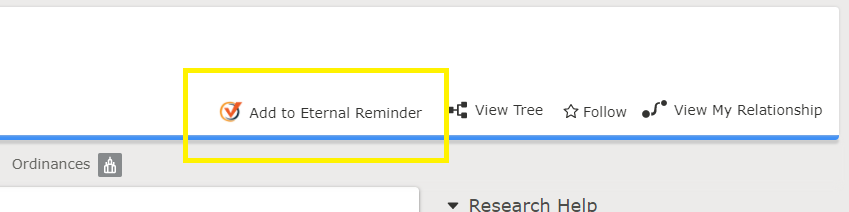
By enabling Additional Features and installing the Chrome extension, you can create reminders directly while viewing a person’s page in FamilySearch. These direct-links appear only when the ancestor’s 110th birthday is within the next 100 to 110 years.
What enables the links
-
Sign in to your account at Eternal Reminder.
Make a donation (any amount) to enable the “Additional Features” for your account, which include:
- Direct “Add to Eternal Reminder” links in FamilySearch.
- Increased limit so reminders can be set up to 10 years in advance (instead of the standard 5 years).
- Install the Eternal Reminder Chrome extension in your browser.
- Once both are done, you’ll see the new link appear on eligible ancestor profiles in FamilySearch.
Using the link in FamilySearch
- In FamilySearch, go to an ancestor’s profile whose 110th birthday falls within the next 100 to 110 years.
- You’ll see an “Add to Eternal Reminder” link (added by the extension) in the following locations:
- On the ancestors profile details page
- After clicking the green temple icon in the FamilySearch Tree view
- Click the link to save the ancestor to Eternal Reminder. The link will change to "Saved to Eternal Reminder" once the ancestor has been saved.
Why the 100-to-110-year window?
The link is only shown when the ancestor’s 110th birthday is coming up (within that 100-to-110 years range) to correlate with the time period ancestors can be saved to Eternal Reminder. By restricting the link to that range it keeps the interface clean and only shows the option when it’s useful.
What if it doesn’t show?
- Make sure your Additional Features donation is active.
- Verify the Chrome extension is installed and active.
- If you recently enabled Additional Features, try logging out of FamilySearch then logging back in.
- Check that the ancestor’s 110th birthday falls in the eligible timeframe (within next 10 years)
- Try refreshing the FamilySearch page or re-loading the extension.